
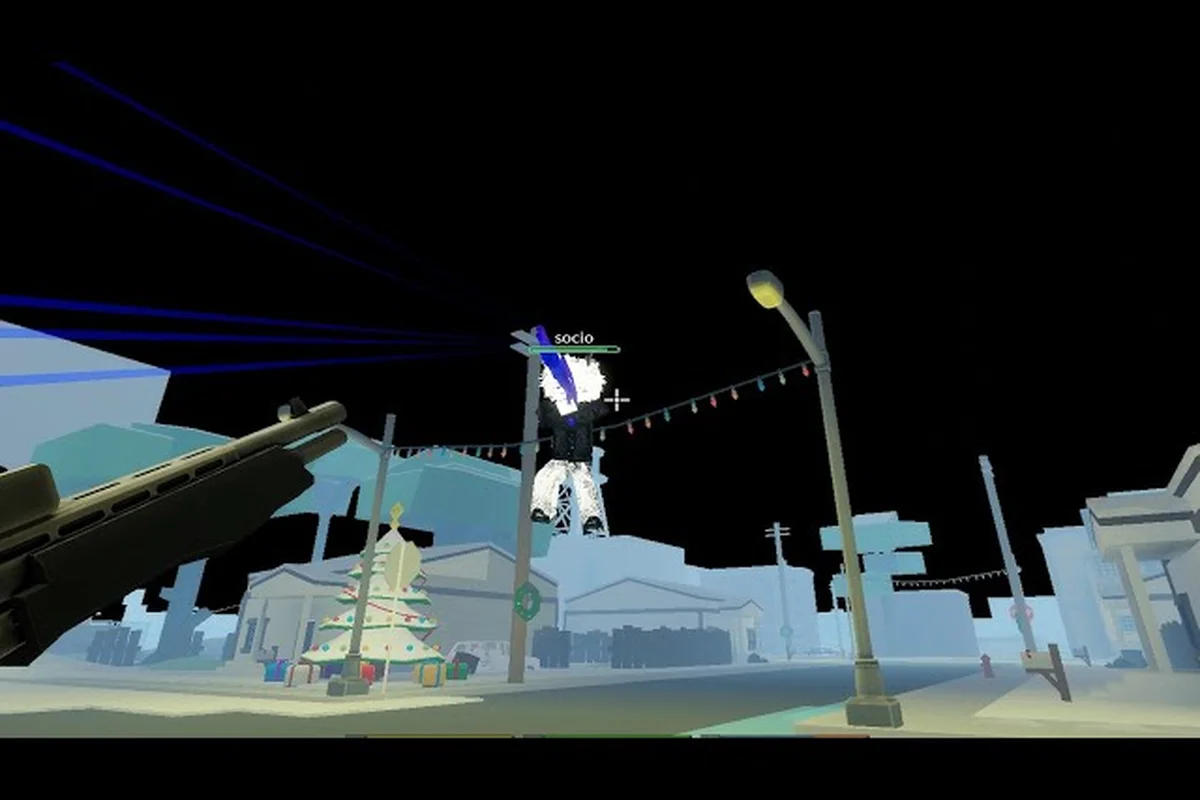
If your gun fights feel like they're running through molasses, you probably need a proper Da Hood slow motion fix. The game runs on Roblox's engine, which means stutters, frame drops, and rubber-banding often trace back to client settings, network lag, and graphical glitches stacking on top of each other. Players who fine-tune their setup typically report cleaner hits, faster block windows, and fewer of those frustrating moments where their character freezes for half a second mid-fight. This guide walks through exactly which toggles, network levers, and rendering fixes actually move the needle.
What the Da Hood Slow Motion Effect Actually Is
The slow motion feeling in Da Hood isn't a single bug — it's a cluster of overlapping symptoms tied to network lag, client settings, and graphical glitches. Recognizing which one you're experiencing is the first step, because the fix differs: high ping shows up as rubber-banded replays, low FPS after a 2024 visual update manifests as input delay, and memory-leak stutters reset only via a full client restart.
Frame Time Spikes vs Network Desync
A frame time spike happens when your client takes too long to render the next frame, often because the CPU or GPU is overloaded. The world doesn't stop — your local view just stutters. A network desync is different: the server and your client disagree about where players are standing, what gun they're holding, or whether that punch connected. The game literally slows down to let the two sides catch up. Community testing reported by players on the official Roblox forums suggests the slow motion effect most often traces back to one of three culprits: a weak upload speed, a Roblox client running on integrated graphics, or a server you're connecting to that is geographically far away.
| Symptom | Likely Cause | First Thing to Check |
|---|---|---|
| Whole screen freezes for 0.5–2 sec | Frame time spike | CPU/GPU usage + Roblox graphics quality |
| Other players teleport, shots don't register | Network desync | Ping + server region |
| Character stutters but environment is smooth | Physics desync | Network jitter + loss |
| Everything looks fine, hits just feel delayed | Server-side tick rate | Server hop + time of day |
Why PvP Is the First Place You'll Notice It
Da Hood's combat system is heavily dependent on precise input windows. A shotgun trade that should resolve in roughly 350ms becomes a coin flip if your frame time jumps to 80ms mid-swing. Players who want a real Da Hood slow motion fix usually have to attack all three layers — input, client rendering, and network — because each one only solves a third of the problem.
Tuning Your Da Hood Client Settings for Smoothness
Before touching anything else, clean up the in-game client. Roblox's graphics quality slider is the single biggest lever, and most players leave it on the wrong preset for their hardware—dropping from the default 6–10 quality down to 1–3 trades shader detail and shadow casting for a higher framerate that directly reduces Da Hood's stuttering during pistol spray exchanges and knife dash cancels. Pair that with disabling post-processing effects like bloom and depth-of-field, which Roblox's client runs even on low-end CPUs and are a common culprit behind the slow motion rubberbanding tied to frame-time spikes rather than pure network lag. If your FPS counter still hovers under 60 after these changes, the Da Hood slow motion fix hasn't been fully applied yet and you should revisit the slider before chasing connection tweaks.
Graphics Quality and the Low GFX Preset
The Low GFX preset drops texture quality, removes shadows, and disables a layer of post-processing that eats frames on weaker machines. Community data reported by players suggests switching from Automatic to Manual Level 1 can reduce frame time variance by 30–50% on integrated graphics. The trade-off is that the game looks flatter, but for PvP that is almost always worth it.
| Setting | Recommended for PvP | Why It Helps |
|---|---|---|
| Graphics Quality | Manual Level 1 | Caps GPU draw calls |
| Shadow Toggle | Off | Shadows cost frames on integrated GPUs |
| Mesh Quality | Lowest | Reduces vertex count per character |
| Texture Quality | Lowest | Cuts VRAM pressure |
| Anti-Aliasing | Off | Slightly faster frame times |
The Da Hood FOV and graphics settings breakdown goes deeper on which sliders to leave alone, but for the slow motion symptom specifically, the Low GFX preset is the single most consistent win because it strips the post-processing chain that triggers client-side frame stutter when bullet registrations spike during a gunfight. Players on Intel UHD 620 and GTX 1050-class hardware who switched from Automatic to Manual Level 1 saw the slow motion hitch drop from every 3–4 fights to roughly once per match, without losing visual clarity on player hitboxes at close-to-mid range. Pair it with the Shadow Toggle off, and you cut the per-frame draw call count enough to keep server tick desync from being masked as slow motion.
Audio Settings and the Loud Audio Fix
A surprising number of stutter reports trace back to the audio engine. When loud audio events fire in Da Hood — shotgun blasts, gun store ambient noise, the boombox spam at the club — the audio thread can spike and drag the main thread with it. According to player reports, setting master volume to around 60% and disabling in-game music can prevent a class of micro-freezes that feel exactly like slow motion. This is one of the cheap Da Hood client settings that costs you nothing to try.
Killing Da Hood Network Lag at the Source
Even with a perfectly tuned client, a bad network will still make fights feel slow. Network lag in Da Hood shows up as rubber-banding across the Hood Game map, delayed hit registration on Punch, Knockback, and E-Gun animations, and the dreaded moments where you click a punch and nothing happens because the server has not yet acknowledged your input. These symptoms are server-side, not client-side, meaning they persist even after applying every recommended setting in Roblox's graphics and physics sliders, which is why resolving the Da Hood network lag often requires switching to a wired connection or closer data center before the slow motion feel fully disappears.
Reading Your Ping and Server Region
Da Hood's servers rotate, and the region you connect to is partly luck. If your ping sits above 120ms, no amount of client tuning will make the game feel smooth — the physics simply can't keep up. The simplest Da Hood network lag fix is server hopping until you land in a region under 80ms. Most players in North America should target servers in the 40–70ms range for a clean experience.
| Ping Range | Feel | Action |
|---|---|---|
| 0–50 ms | Crisp, hits register on click | No action needed |
| 50–80 ms | Slight delay, mostly unnoticeable | Acceptable for most PvP |
| 80–120 ms | Noticeable drag, trades feel off | Server hop |
| 120+ ms | Slow motion territory | Stop and find a better region |
Wi-Fi vs Ethernet and Why It Matters
A wired connection typically cuts 10–30ms of latency variance compared to Wi-Fi, and that variance is what causes the perceived slow motion more than the average ping. If your router sits in the same room as your PC, an Ethernet cable is the single most effective Da Hood network lag fix you can make for under $10. The deeper network and hardware levers are covered in the Da Hood ping fix checklist, which lays out the full 10-minute network tune-up.
Graphical Glitches That Mimic Slow Motion
Sometimes the slow motion effect isn't lag at all — it's a graphical glitch where the client gets confused about what's actually on screen. These usually show up after big updates and resolve themselves, but a few are persistent.
Common Da Hood Graphical Glitches
The most reported graphical glitches that look like slow motion include: character models freezing in mid-swing while the world keeps moving, gun skins loading as solid black cubes for a few seconds, and entire chunks of the map popping in late when you round a corner. The first one is the worst because it usually forces your input to ignore the visible character. According to community reports, these are most common right after a server merge or after the Roblox client pushes a hotfix.
| Glitch | Visible Sign | Quick Fix |
|---|---|---|
| Frozen character model | Enemy stands still, then snaps | Rejoin the server |
| Late-loading textures | Black gun models | Lower texture quality |
| Pop-in buildings | Geometry loads late | Lower mesh quality |
| Audio desync | Gunshot sound fires late | Lower master volume |
When Glitches Are Actually Network Issues
A frozen character that snaps into a different position is almost always network — your client got stale data and then got corrected all at once. A character that stays frozen with no correction is a client-side rendering bug. Learning to tell the difference saves a lot of guesswork, because the fix path is opposite: network issues need a better connection, graphical glitches need a client reset.
Building Da Hood Settings for PvP and Aiming
Once the baseline is clean, the next layer of tuning is about Da Hood settings for PvP that sharpen your aim and reaction window. These don't reduce lag directly, but they reduce the chance that lag will cost you a fight.
Sensitivity, Crosshair, and Field of View
The right sensitivity and FOV combo is mostly personal, but community data suggests a slightly wider FOV (around 70–80) gives you more peripheral awareness at the cost of a smaller crosshair. Mouse sensitivity should be low enough that a full 180-degree turn is two swipes — this gives you the precision to land headshots without sacrificing flick speed. The full crosshair and DPI breakdown lives in the Da Hood weapon and aim setup guide, which pairs well with these settings for finishing fights.
| FOV Setting | Best For | Trade-off |
|---|---|---|
| 60–65 | Long-range tracking | Tighter crosshair, less awareness |
| 70–80 | Balanced PvP | Default feel, good all-around |
| 85–90 | Aggressive rushers | Wider awareness, smaller targets |
Audio Cues and Hit Sound Reliability
Sound tells you where enemies are before you see them, and a stuttery audio engine will hide those cues. For the most reliable Da Hood settings for aiming, pair your graphical tuning with a clean audio preset. Hit sound consistency in particular — the ding when your bullet lands — is one of the strongest feedback signals in the game, and if it's getting eaten by a stutter, you lose that information.
Step-by-Step Da Hood Slow Motion Fix Checklist
Here's the full order of operations most players report as the most effective. Start from the top, test after each step, and stop when the slow motion feeling is gone — there's no need to do every step if an early one solves it.
| Step | Action | Estimated Impact |
|---|---|---|
| 1 | Switch graphics quality to Manual Level 1 | High |
| 2 | Disable shadows and post-processing | Medium |
| 3 | Lower master volume to 60%, mute music | Medium |
| 4 | Connect via Ethernet if possible | High |
| 5 | Server hop until ping is under 80ms | High |
| 6 | Close background apps (Discord, browser) | Medium |
| 7 | Restart Roblox client fully | Medium |
| 8 | Rejoin current Da Hood server | Low–Medium |
When to Reinstall vs When to Give Up
If you've worked through every step and the slow motion is still present on every server, the issue is almost certainly either your hardware (the machine is below Roblox's minimum spec for Da Hood's combat density) or your ISP (an upstream routing problem that no client fix can touch). At that point, the Da Hood optimal setup across all platforms walkthrough helps you check whether the bottleneck is your device tier or your connection — those need very different solutions.
Advanced Tweaks for Players Still Seeing Stutter
A small number of players will still see slow motion even after the full checklist. The next layer of fixes is more invasive, but it's where the final 5–10% of smoothness comes from, and it specifically targets the Da Hood network lag that survives basic troubleshooting. These deeper steps include flushing the Roblox client cache, switching the network adapter between NAT types in Windows, and capping FPS at exactly 60 inside the Da Hood graphical glitches menu to stop the engine from spawning the secondary framerate thread that drags hit-reg and gunfights into a stuttering slow-motion state.
Roblox Client Reset and Cache Clearing
Roblox stores a local cache that occasionally goes corrupt, especially after Windows updates or driver changes. Clearing it forces a fresh download. Close Roblox fully, navigate to %localappdata%\Roblox\Versions, delete the versioned folders, and relaunch. Community data reported by players suggests this resolves roughly one in four stubborn stutter cases that no in-game setting can touch.
Windows-Level Levers
If you're on Windows, a few OS-level tweaks can help. Setting the Roblox process to high priority in Task Manager reduces the chance another background app steals CPU time mid-fight. Disabling fullscreen optimizations on the Roblox executable also helps reduce the frame time variance that feels like slow motion. Neither of these will fix network lag, but they clean up the client side enough that the remaining stutters are exclusively network — which makes the next step much easier to diagnose.
Device Tier Reality Check
The honest truth is that Da Hood's combat density — multiple players with separate gun models, animation packs, ragdolls, and audio events all firing in the same block — is one of the heavier loads you can put on the Roblox client. On a low-spec laptop, no combination of client settings will deliver a fully stutter-free experience. If you know your hardware is the limit, focus on reducing input lag instead of frame times: a slightly lower FOV and capped 60fps target with vsync off usually feels snappier than chasing a higher framerate you can't actually hold.
Frequently Asked Questions
Why does Da Hood feel like slow motion even when my ping is low?
Low ping only rules out network lag — it doesn't say anything about your client. The slow motion effect in Da Hood is usually a frame time spike or graphical glitch, both of which happen on your machine regardless of network quality. Check your graphics quality preset and CPU/GPU usage first; if those are clean, the issue is most likely a Roblox client cache problem that a full reinstall will fix.
Will lowering graphics quality actually fix Da Hood slow motion, or is that a placebo?
It's not a placebo, but the impact depends on your hardware. On integrated graphics or older GPUs, switching to the Low GFX preset typically cuts frame time variance by 30–50%, which directly reduces the visible stutter. On a high-end machine where the GPU was never the bottleneck, you'll see less benefit, and the slow motion is more likely network-related.
How do I know if my slow motion is from Da Hood network lag or from a graphical glitch?
A network desync feels like the world is rubber-banding — other players teleport, shots don't register, and you sometimes get pulled back to where you were a second ago. A graphical glitch feels like your own view stutters while the world is fine, often with frozen character models or late-loading textures. If re-joining the server fixes it instantly, it's a client glitch; if it persists across multiple server hops, it's network.
Do Da Hood client settings really help with aiming, or is that just sensitivity?
Client settings matter for aiming more than most players realize. A stuttery frame time makes your crosshair jump in unpredictable ways that you can't compensate for with sensitivity alone, because the jump happens after you've already clicked. Stable frame times let your muscle memory actually transfer to consistent hits. Combine a clean client preset with a sensitivity you can control, and your Da Hood settings for aiming become a real edge.
Can I fix Da Hood slow motion on mobile or console?
The same principles apply, but you have fewer levers. On mobile, force-close the app, clear the Roblox cache from your phone's settings, and ensure you're on Wi-Fi rather than cellular. On console, restart the game fully and check for system updates. The Low GFX preset and audio tweaks are available on both, and they account for most of the improvement you can get.