Performance & Settings
Improve Da Hood performance with FPS, ping and graphics settings, plus crosshair, sensitivity and keybind tweaks for smoother PvP.
Introduction
Da Hood is a game where a few frames of stutter decide a duel. The combat system rewards precise timing on blocks, weaves and stomps, and every one of those windows is measured in fractions of a second, so a stable frame rate and a low, consistent ping matter more than any single graphical setting. This section covers the practical side of that: which crosshair IDs and camera settings give the cleanest aim picture, how FOV and graphics quality interact with frame rate, how to find a sensitivity and DPI combination that stays consistent under pressure, and what actually reduces ping rather than just moving the problem around. It also covers the input layer, from keybinds and mobile controls to the audio settings that let you hear a player before you see them.
Recommended Settings Overview
| Setting | Recommended | Why It Matters |
|---|---|---|
| Crosshair ID | Small, high contrast | Keeps the target visible while aiming |
| FOV | Raised for awareness | Wider picture, earlier threat detection |
| Graphics Quality | Low GFX preset | Higher, steadier frame rate in fights |
| Sensitivity & DPI | Low DPI, tuned in-game | Consistent tracking under pressure |
Setting Groups
Crosshair & Camera
The cleanest aim picture available
FOV & Graphics
Frame rate beats visual fidelity
Sensitivity & DPI
One number you never change again
Ping & Network
Fixing latency at the source
Core Mechanics
Performance in Da Hood breaks into three layers that need to be tuned separately. The client layer is what you control directly: graphics preset, FOV, resolution, crosshair ID, sensitivity and keybinds. Lowering the graphics preset removes shadows and post-processing, which raises frame rate on almost any device, while FOV widens the rendered picture at a small cost to frame time. The input layer covers DPI, in-game sensitivity, controller deadzones and mobile control layout; consistency here matters more than any specific value, because muscle memory is what makes tracking automatic. The network layer is the one players most often misdiagnose. Ping spikes usually come from Wi-Fi interference, a distant server region or background bandwidth use rather than from the game itself, so the fixes are physical: a wired connection, a closer region and a closed download queue. Graphics tweaks can make stutter feel smoother, but they never reduce true latency.
Advantages
Settings work is the cheapest performance gain available because it costs nothing and persists across every session. A player who tunes crosshair, FOV and sensitivity once keeps the benefit forever, unlike a weapon or an armour tier that is lost on death. Lowering the graphics preset improves frame rate on budget hardware as well as high-end machines, which means the same advice works on a school laptop and a gaming desktop. Consistent settings also make practice meaningful: if your sensitivity never changes, every fight trains the same muscle memory instead of resetting it. Finally, the network fixes are permanent improvements to your whole setup, not just to Da Hood, so the time spent diagnosing a ping spike pays out in every other online game you play.
Challenges
Settings cannot fix a bad connection. If your route to the server adds two hundred milliseconds, no crosshair ID will make a block register on time, and players who chase graphics tweaks while ignoring their network end up tuning the wrong layer entirely. Some popular advice is also outdated: crosshair catalog codes and camera settings change between Roblox updates, and a guide written for last year's client can point at options that no longer exist. Third-party macros and auto-clickers sit on the wrong side of the rules, so any setting that requires external software carries a ban risk that no performance gain justifies. Finally, endless tuning is its own trap: players who rebuild their sensitivity every week never build the consistency that actually wins fights.
Frequently Asked Questions
What are the best settings for Da Hood on low-end devices?+
How do I fix ping spikes in Da Hood?+
Does FOV actually help in Da Hood combat?+
Quick Tips
Change one setting at a time and play a full session before changing another. Players who rebuild their entire configuration in one sitting never learn which change actually helped, and they usually end up reverting everything after a bad night. Isolate the crosshair first, then sensitivity, then graphics, and give each one enough play time to judge honestly before you move on to the next.
Write your final settings down somewhere outside the game. Roblox updates and device resets occasionally clear client configuration, and players who cannot remember whether their sensitivity was set to a particular value end up rebuilding from scratch and undoing weeks of muscle memory. A short note with DPI, in-game sensitivity, FOV and crosshair ID takes thirty seconds to write and saves a full evening of retuning.
Test performance in a private server before you blame your hardware. A private server isolates your client from the player count, the effects and the network traffic of a full lobby, so a smooth private session and a stuttering public one tells you the bottleneck is the lobby rather than your machine. That distinction changes the fix entirely: one is a graphics problem, the other is a network one.
Never use external macros or auto-clickers to win fights. Beyond the ban risk, third-party input tools change the timing windows that Da Hood's combat is balanced around, and detection has tightened considerably. The legitimate gains available through crosshair, sensitivity and network tuning are large enough that risking an account for a marginal input advantage is a straightforwardly bad trade.
Featured
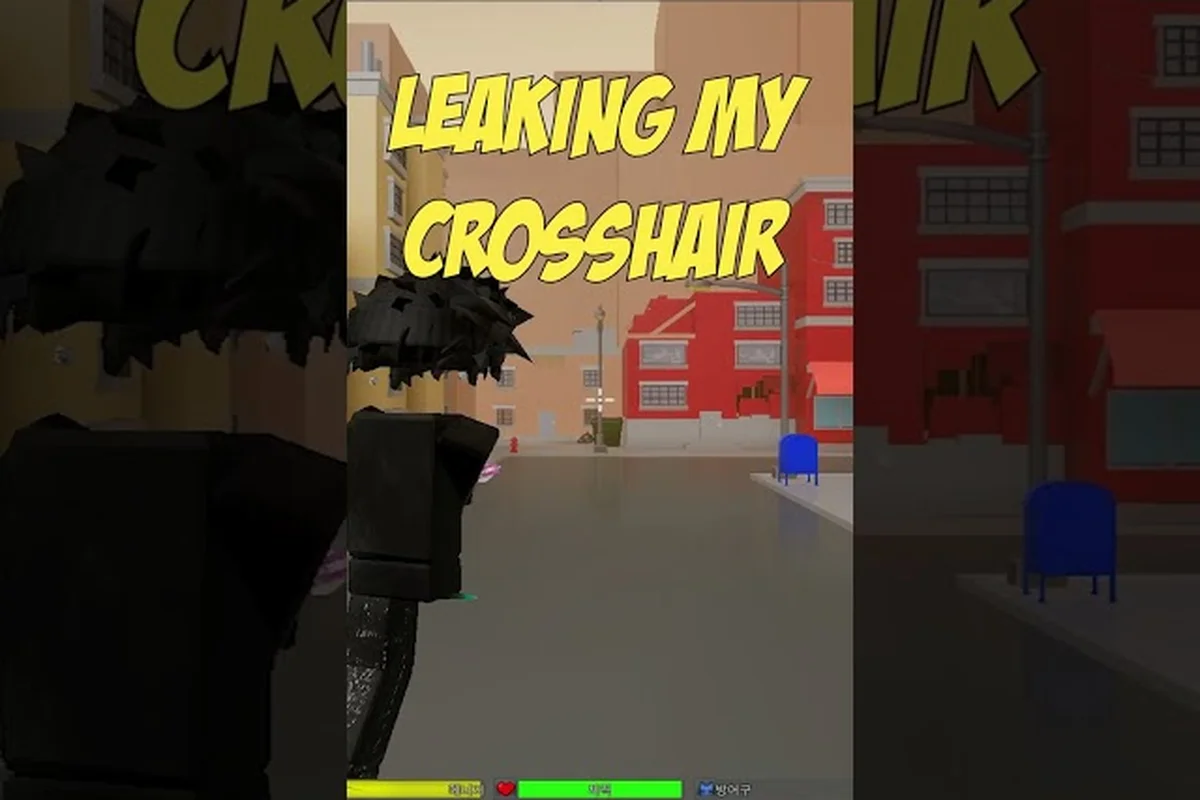
Da Hood Best Crosshair IDs: Chat, Camera & UI Settings
Grab the best Da Hood crosshair IDs and fine-tune chat, camera, keybinds, and shader settings so your aim feels cleaner in every match.
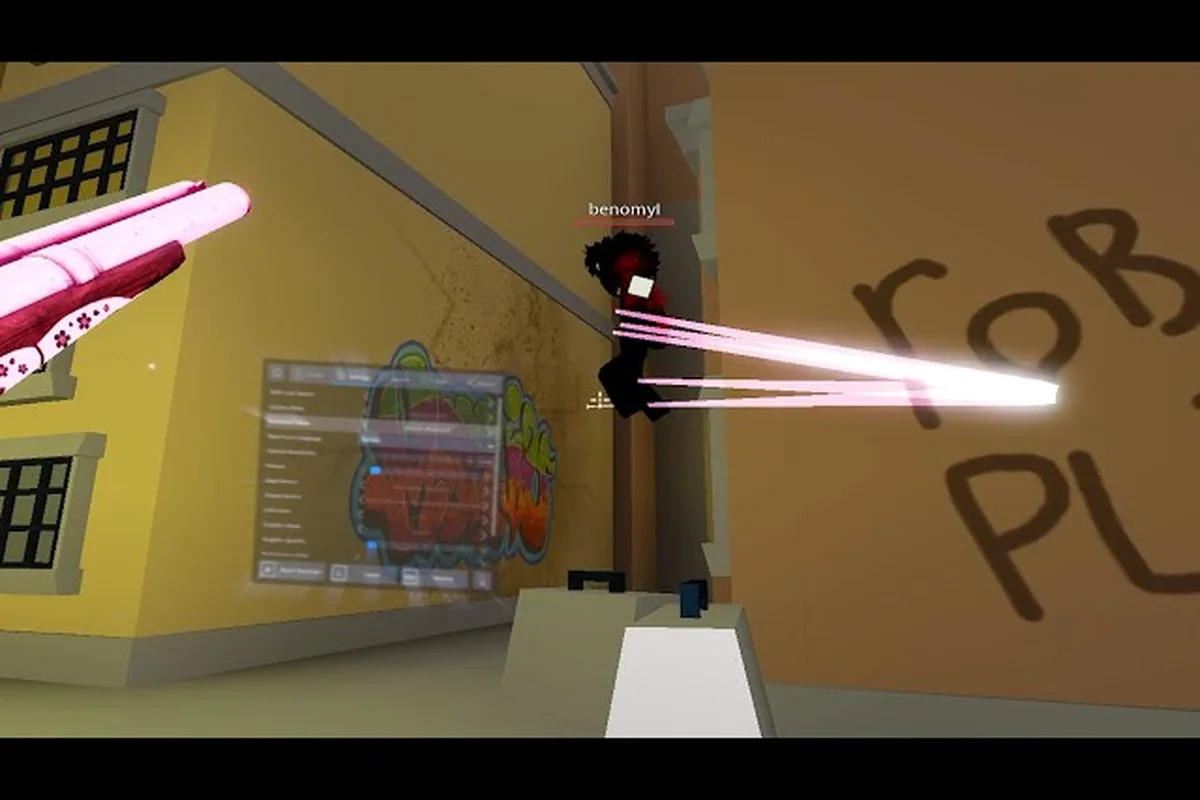
Da Hood Best Settings: Crosshair, Sensitivity & Aimlock
Dial in Da Hood best settings with the right crosshair shape, DPI, sensitivity, and aimlock tweaks so every shot lands clean in any fight.
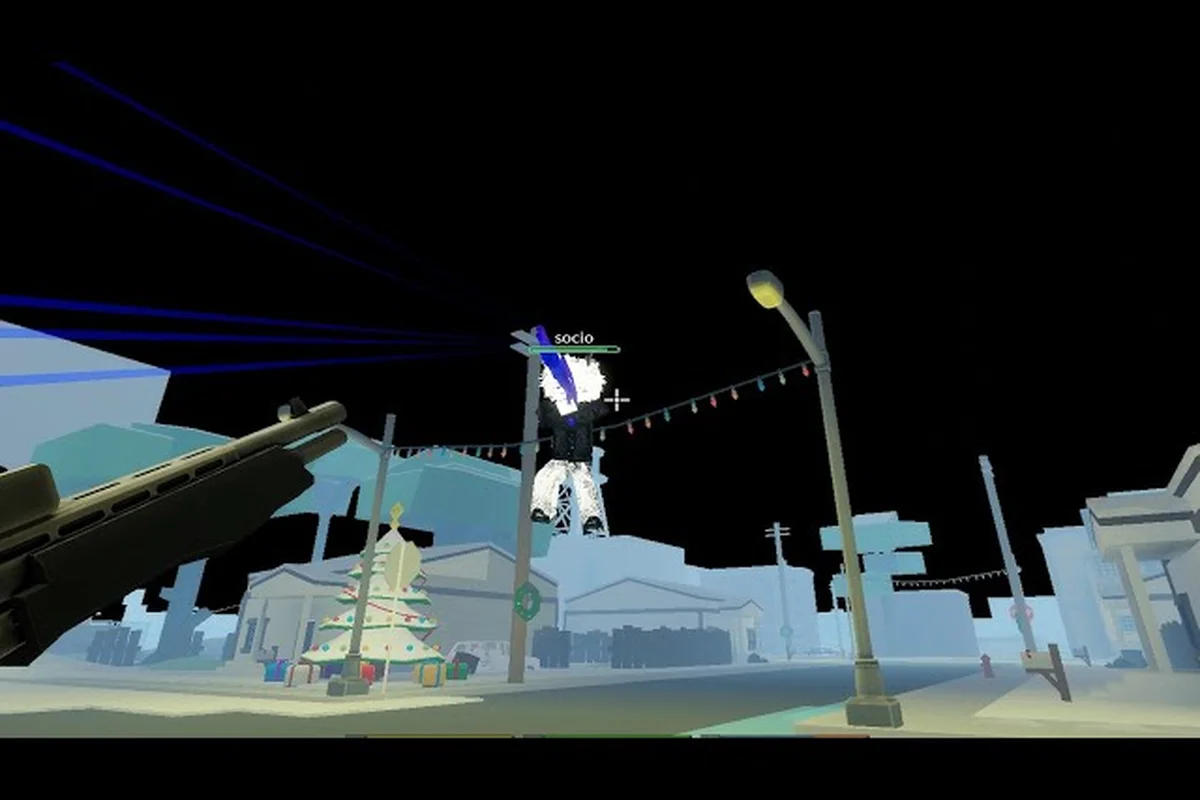
Da Hood Slow Motion Fix: Lag, Client Settings & PvP Smoothness
Fix Da Hood slow motion stutters with the right client settings, network lag tweaks, and graphical glitch workarounds so your PvP and aiming feel snappy again.
All Articles
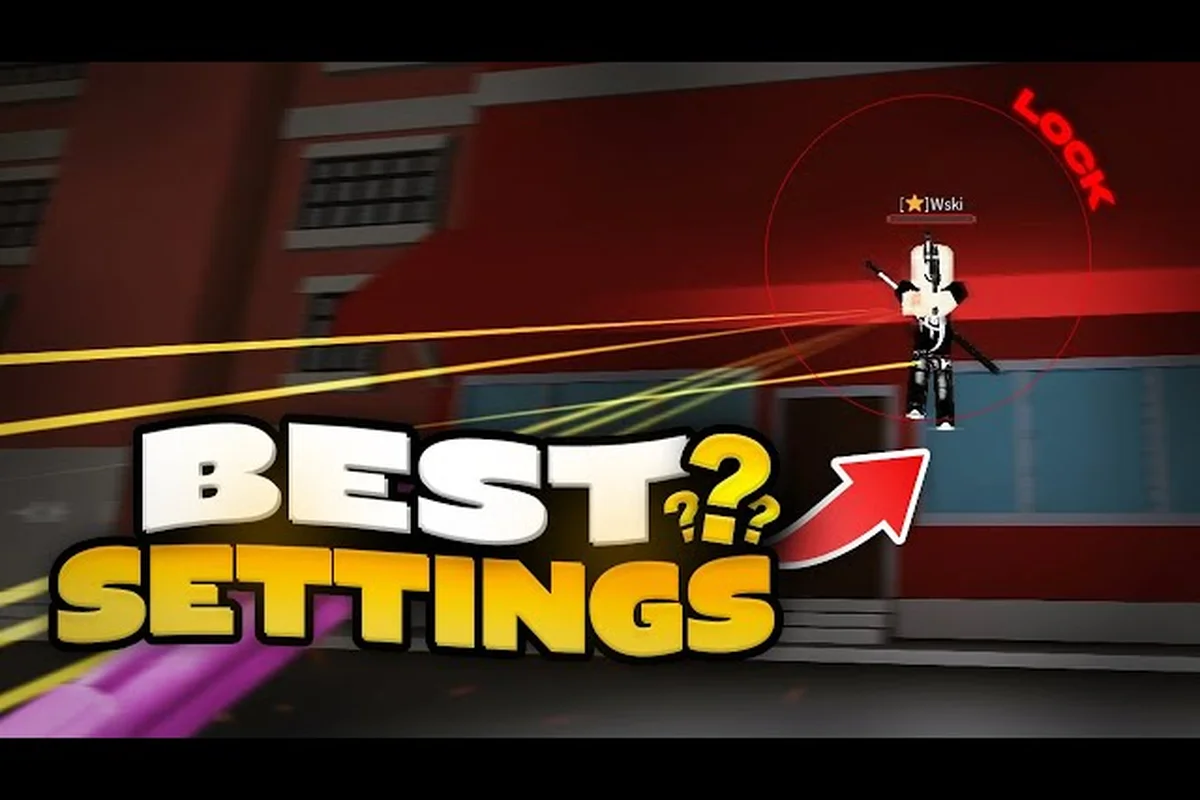
Da Hood FOV Settings: Low GFX, FPS Boost & Lag Fix
Squeeze more frames with Da Hood FOV settings — drop to low GFX, raise your FPS, and fix lag spikes so combat stays smooth on any device.
Da Hood Ping Fix: Best Resolution, Audio & Macro Tweaks
Drop your ping fast with this Da Hood ping fix — adjust resolution, audio, and macro settings to cut lag, fix loud audio, and stop stutters mid-fight.
Da Hood Auto Clicker Settings: Mobile, Xbox & PC Controls
Set up Da Hood auto clicker settings across mobile, Xbox, and PC — remap controls, fix rendering issues, and stop crashes before they ruin your match.